User Registration / Login
Services available to Users
| Available Services | Visitor | Web Users | Corporate Users |
|---|---|---|---|
| eCatalog access | ✓ | ✓ | ✓ |
| CAD Data Download | - | ✓ | ✓ |
| Price Check on eCatalog | ✓ | ✓ | ✓ |
| Online quotation & order | - | - | ✓ |
For new visitors, you may click on the ''Customer Registration Page'' tab below for more details to register an account with MISUMI to enjoy more online services.
For current MISUMI web users who would like to upgrade your user status, please visit the ''Customer Registration Page'' through the link below for more details.
Click to view Customer Registration Page
Adding New Users to your Company
Note: Applicable for "Admin Users" only. Contact Customer Service to learn more.
MISUMI now allows users with Administrative Authority to self-register new users to your company. This saves time, allowing created users to use MISUMI Website quickly.
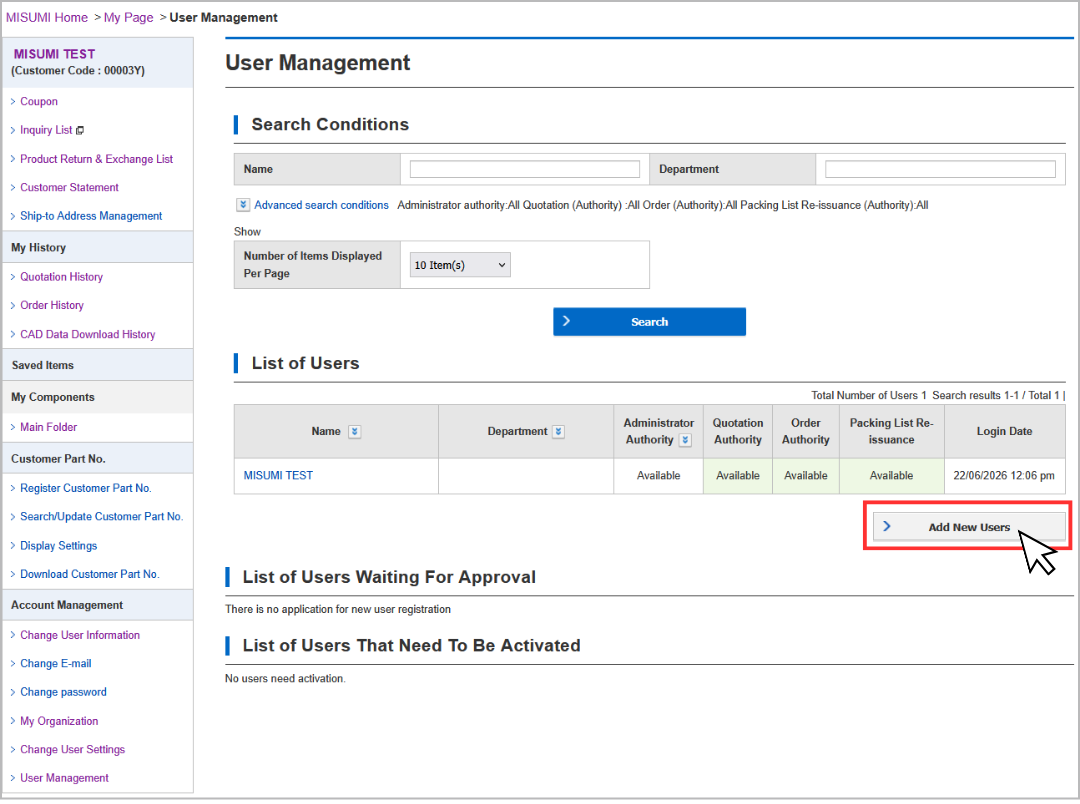
To register new users, navigate from: My Page >> My Page Sidebar "Account Management" section >> User Management
1. Click "Add New Users" to proceed.
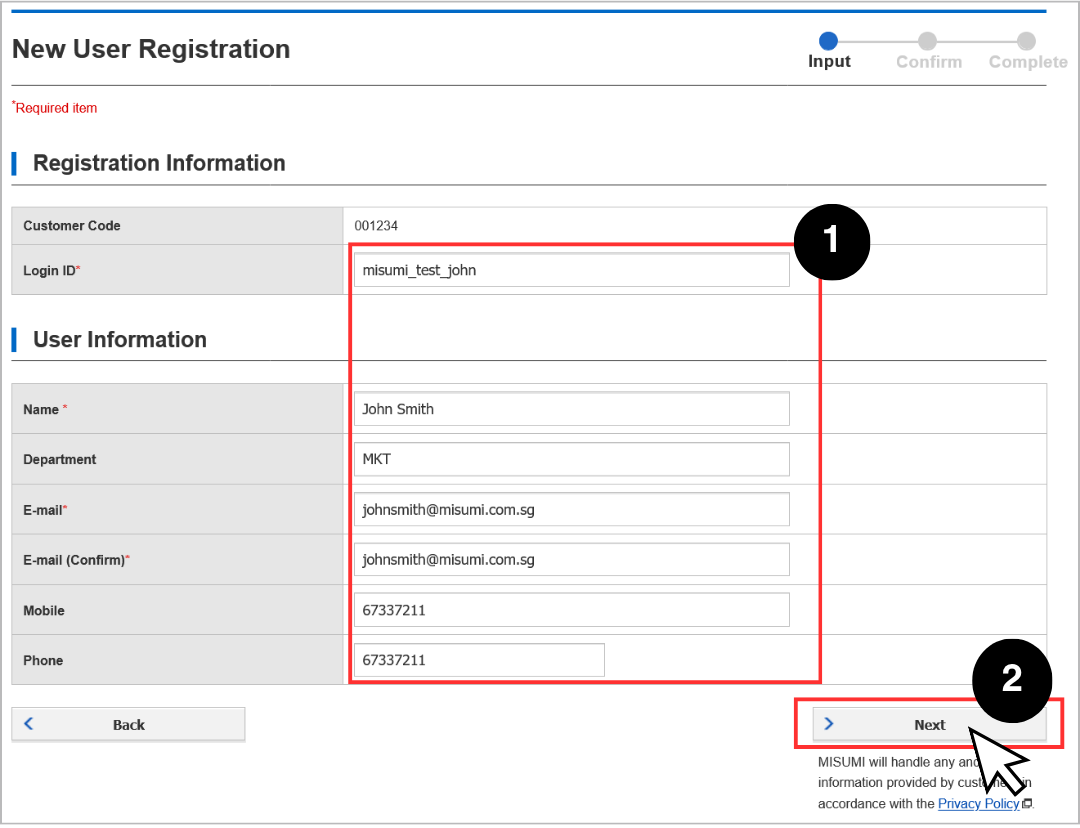
2. Fill in the account details [1] (Including the email of the user you are registering for), and click "Next" [2].
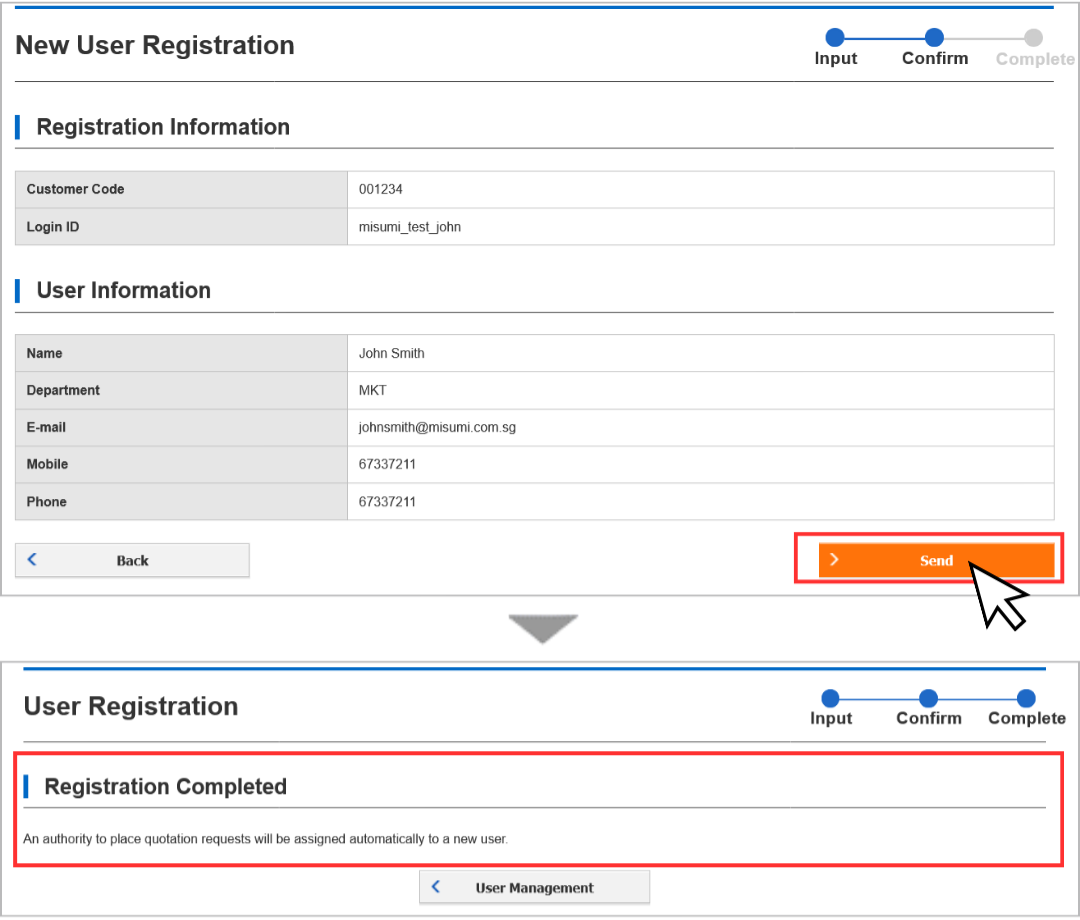
3. Confirm the user details, and click "Send". You will see a "Registration Completed" Page afterwards.
4. Go back to User Management Page, you will see the created user under the List of Users that needs to be activated.
Please request your user to check their inbox (including junk or spam) for the Account activation email sent by our Customer Service Team.
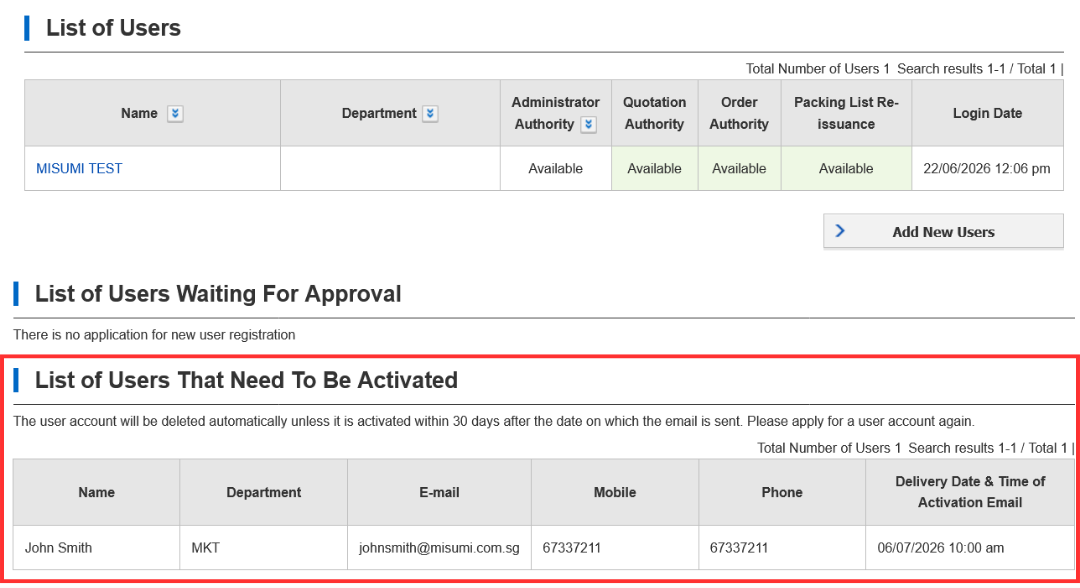
Steps for created user: Activate account and Set Password
Click the link from the activation email, or you may copy and paste the link to your internet browser. Click "Change Password" to set the account's password.
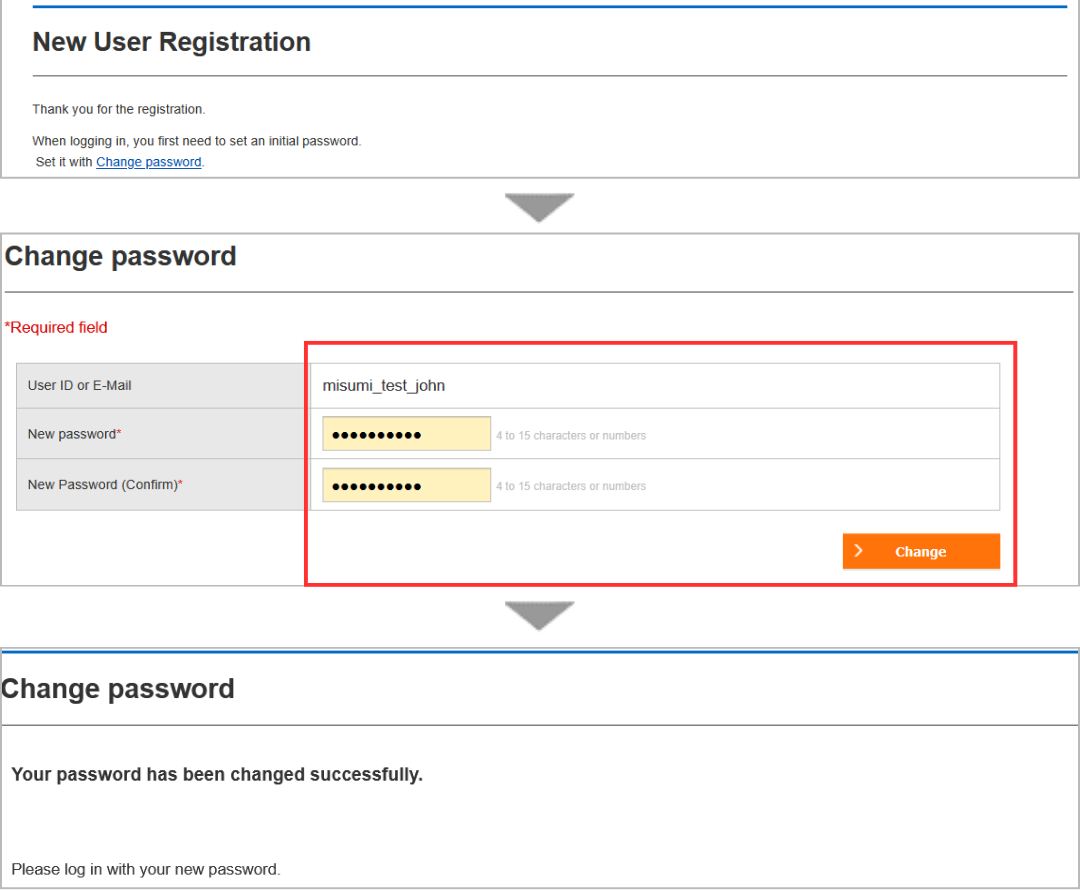
Once this is done, login and browse MISUMI.
Approve Users registered through MISUMI
Note: Applicable for "Admin Users" only. Contact customer service to learn more.
If your New User decides to register through MISUMI's registration form instead, as an Admin user, you would need to approve their account.
1. Ensure your user selected the following options during registration:
[a] Yes, I want to register for Quote and place an Order (Corporate User)
[b] Do you already have a Customer Code? >> Yes
[c] Customer Code Field: Your Company's Customer Code
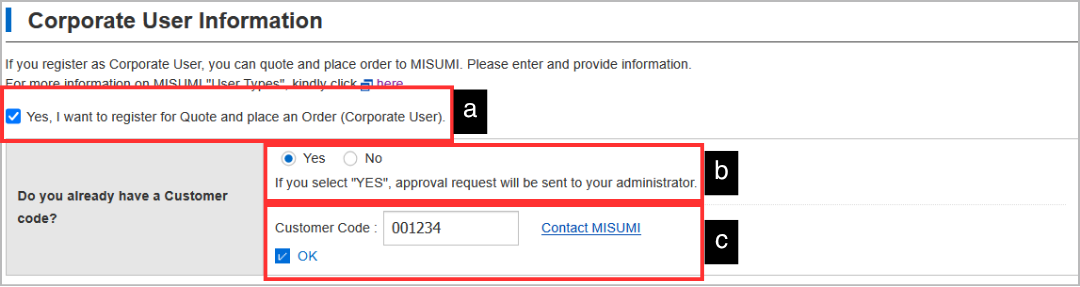
After the user has submitted the registration form, you (Admin user) will receive an email notification to approve the user through user management page. Your user will receive an email informing them that their account is pending approval.
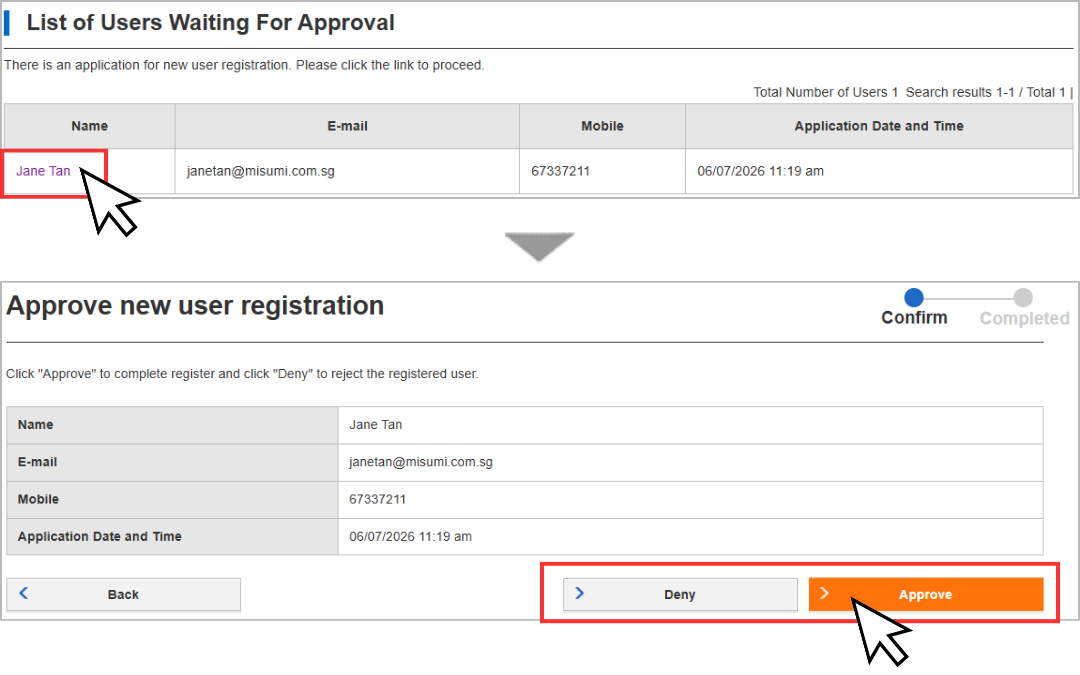
2. Navigate to User Management Page >> List of Users Waiting For Approval. Click the user's name to proceed.
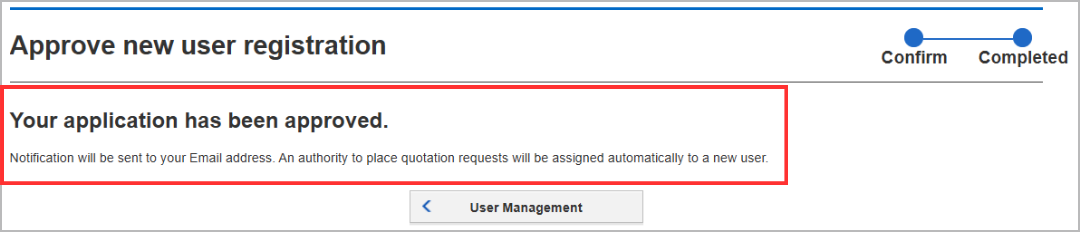
3. Once the user has been approved, they can proceed to reset their password and log in.