Specify Part Number
On the product page, you can view the detailed information of a product and select its specifications and
dimensions.
Depending on the product, you can specify additional processing and options..
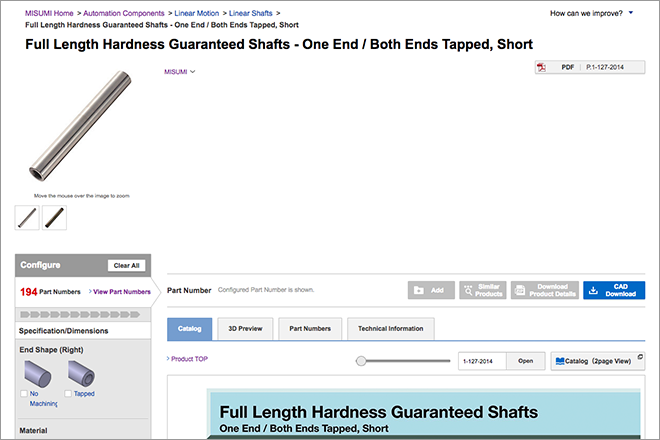
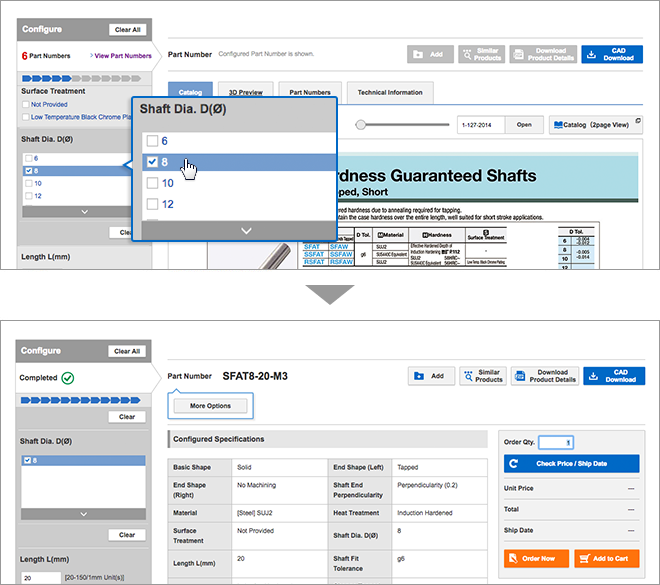
Method 1: Select all specifications & dimensions from configuration menu
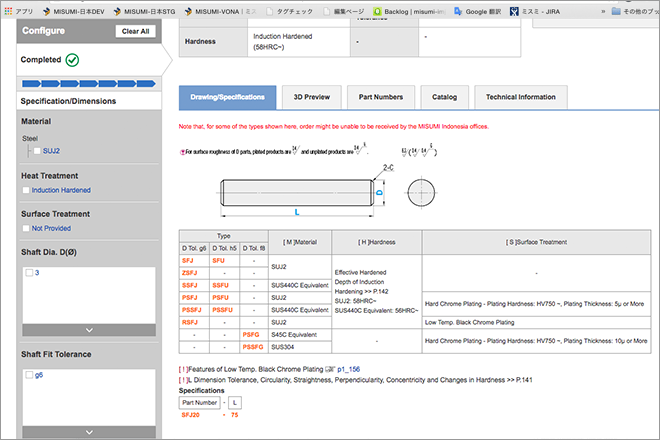
To configure part from scratch, select your required specifications accordingly. If you wish to check what
the configuration is referring to, click on "Drawing".
Configure size and spec accordingly.
After selecting all requried configurations, the corresponding Part Number will be generated.
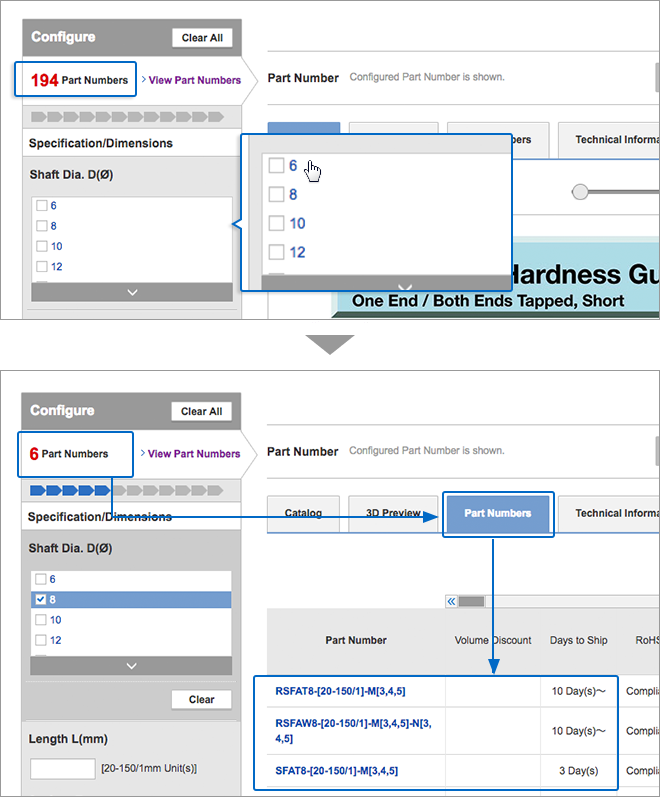
Method 2: Select Part Number from the part numbers list
Select specifications & dimensions to narrow down candidate part numbers and select desired Part Number from the part numbers list.
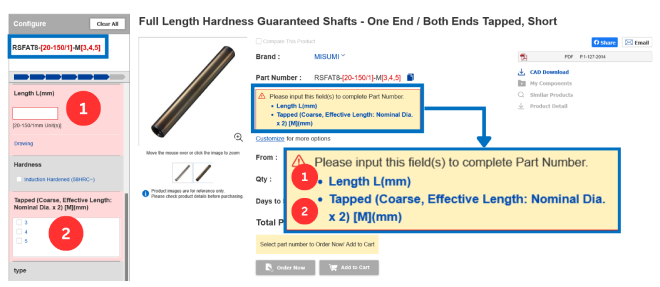
If you have missed out a configuration:
If you have missed out a configuration that is essential to generating Part Number, the error will be shown
next to product image.
Click on the error to jump to missed out configuration (Highlighted in pink).
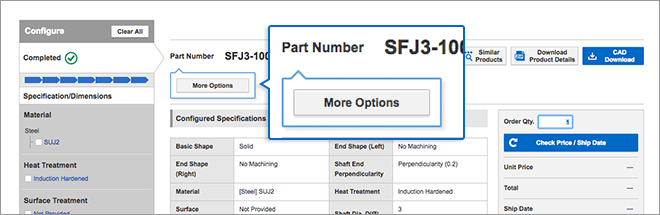
Specify additional processing and options
You can specify additional processing and options for some products.
The "Customize for more options" button will be displayed to show additional alterations.

Click "Customize for more options" button. Then, a set of input items for specifying options will be displayed in the Select specifications and dimensions field.
Fill the input fields to determine the specifications so that the options can be added to the cart and saved to My Components List.
These additional alterations are highlighted in blue .
