Download CAD Data
To download CAD data from product pages, please follow the instructions below. Please note that:
- * You will need to log into your account to download CAD data.
- * CAD data may be unavailable for some products.
Select your specifications, dimensions
Specify product type and dimensions
Key in the required product in the search box.
E.g. SFJT
Once on the product page, select your desired specifications using the "Configure" box on the left side of the page.
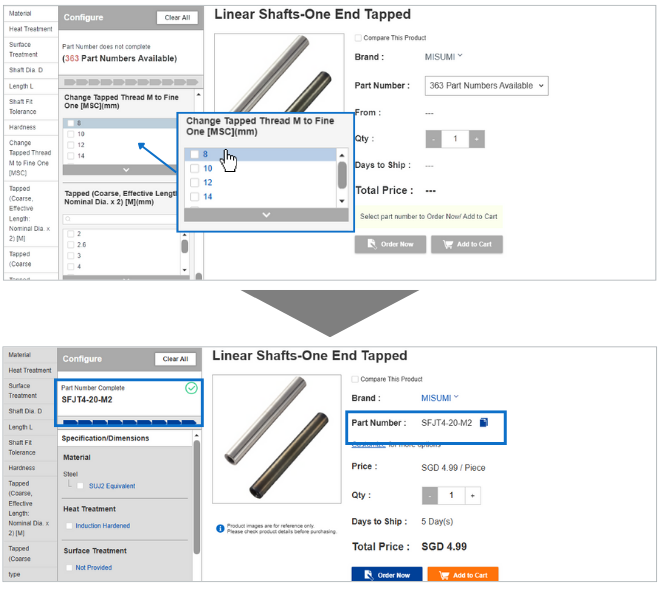
Select, Preview and Download CAD Data
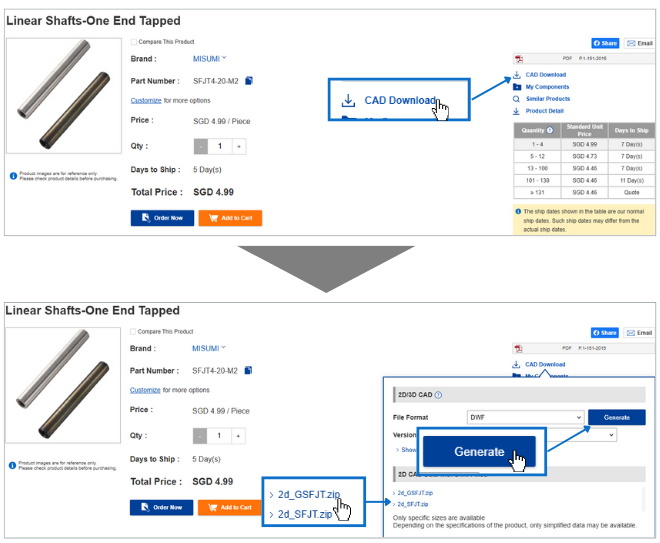
Select and download CAD data
Click on “CAD Download” button and select the CAD data to download for the selected part number as shown below.
Mechanical components (MISUMI brand)
View 3D Preview
Some products may come with a 3D preview. Scroll down the page to the "Product Description" section, look for the "3D Preview" tab and click on it.
- *Please note that:
1. if you have not selected a part number, kindly specify the part number you require in "Specification/Dimensions" in the panel on the left.
2. if you have not specified a part number, the 3D Preview may not appear.
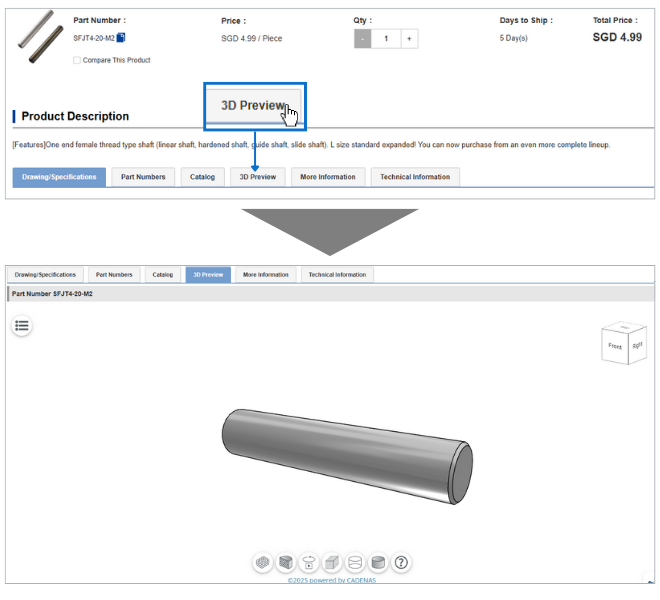
How to manipulate the 3D preview
Rotate: Left-click and drag the mouse pointer on the image.
Zoom: Right-click and drag up or down to zoom in or out.
3D preview control panel

- From left to right:
- 1. Show measuring grid
- 2. Cut
- 3. Animation
- 4. Isometirc View
- 5. Edges
- 6. Shaded with edges
- 7. Help
Press Die / Mold
View 3D preview
Some products may come with a 3D preview. Scroll down the page to the "Product Description" section, look for the "3D Preview" tab and click on it. The preview may take some time to load.
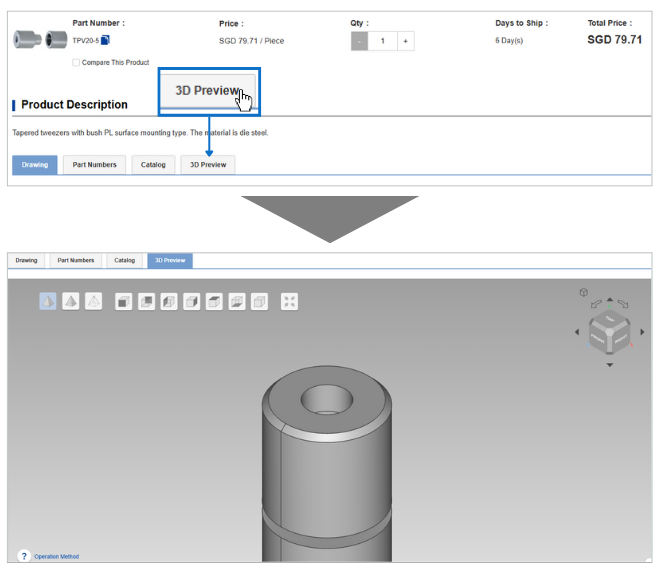
How to manipulate the 3D preview
Rotate: Left-click and drag the mouse pointer on the image.
Zoom: Press Ctrl and left-click while dragging the mouse pointer up to enlarge the image or down to reduce
it.
Move image: Press Shift and drag the mouse, or press the right and left mouse buttons simultaneously and
drag the mouse.
3D preview control panel

1.Opaque
2.Transparent
3.Wireframe
4.Front preview
5.Back preview
6.Left preview
7.Right preview
8.Preview from above
9.Preview from bottom
10.Diagonally above view
11.Fit on screen