(!)Due to
Microsoft's end of support for Internet Explorer 11 on 15/06/2022, this site does not support the recommended
environment.
Instead, please kindly use other browsers like Google Chrome, Microsoft Edge or Mozilla
Firefox.
- Website Upgrade Completed! System improvements are now LIVE to improve your Ordering experience. You may be logged out after the website update, please log in again.
MISUMI Website: Ordering just got easier! | MISUMI South East Asia
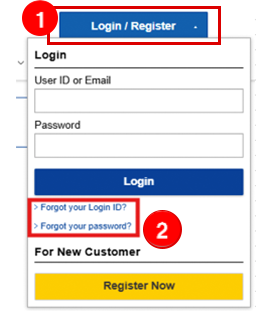
You might be logged out after the new website update, please login again to improve your browsing experience. In case you forget your login credentials, please reset them using the links below.
-
Explore Key Improvements:Streamlined Quote & Order ProcessSimplified Process from Cart to Order
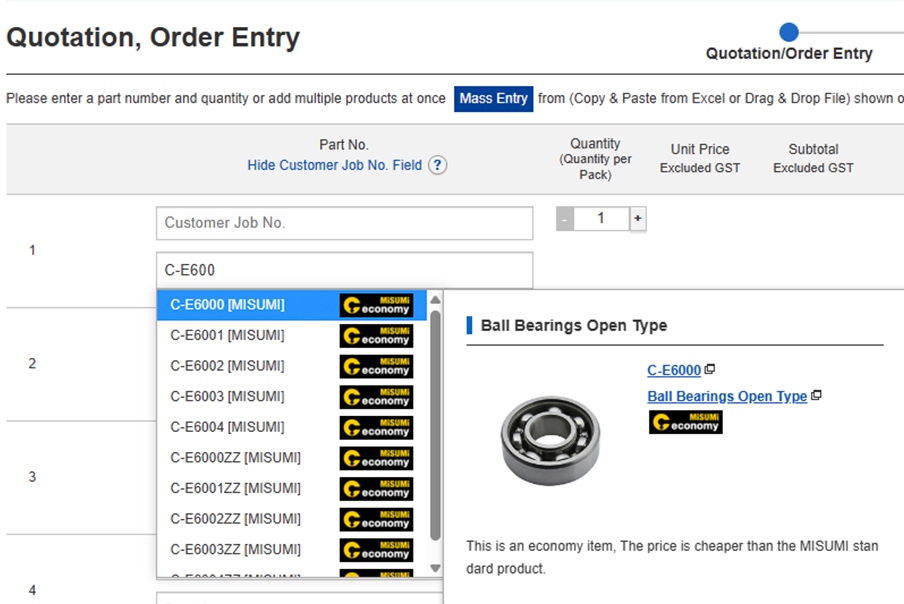
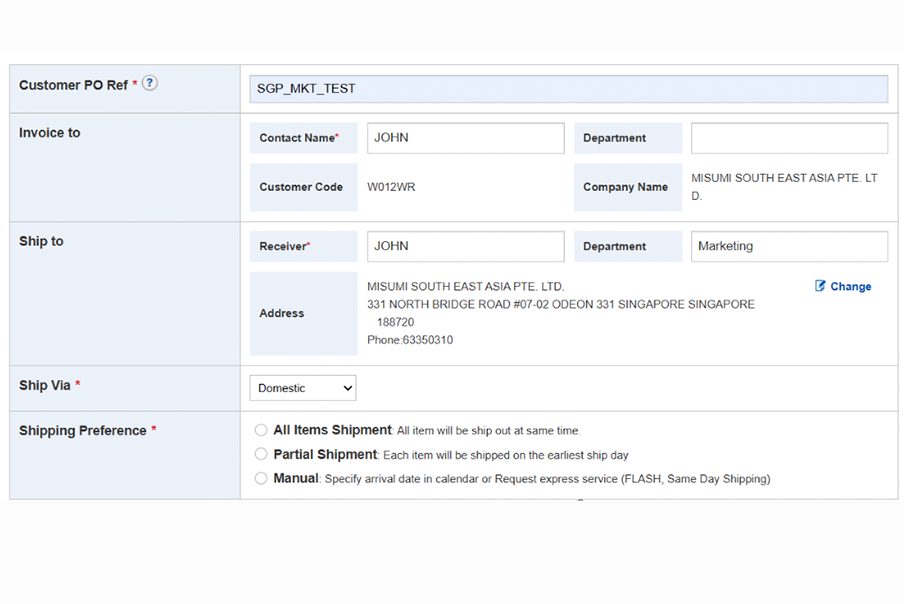 1Smarter Part Number Entry
 1Support for Larger Quantities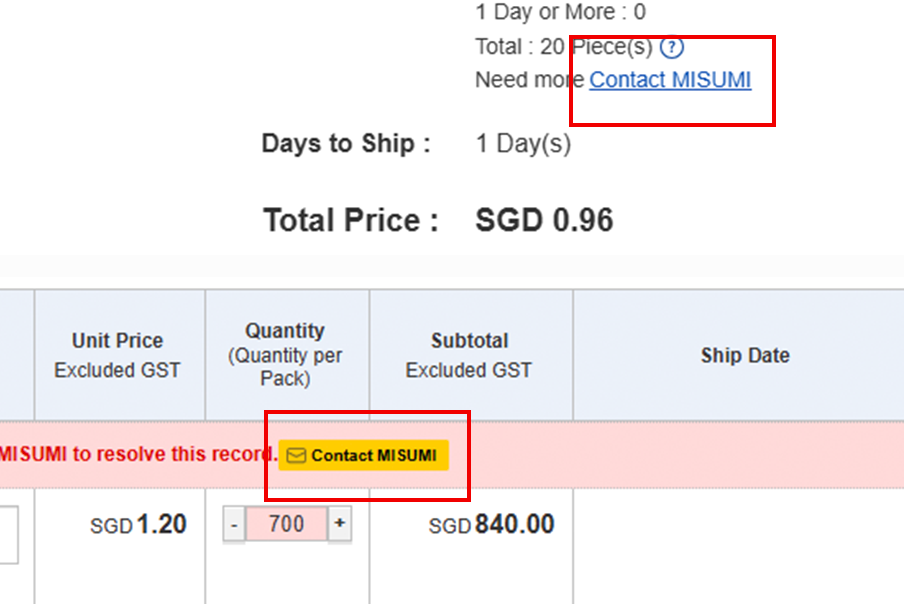
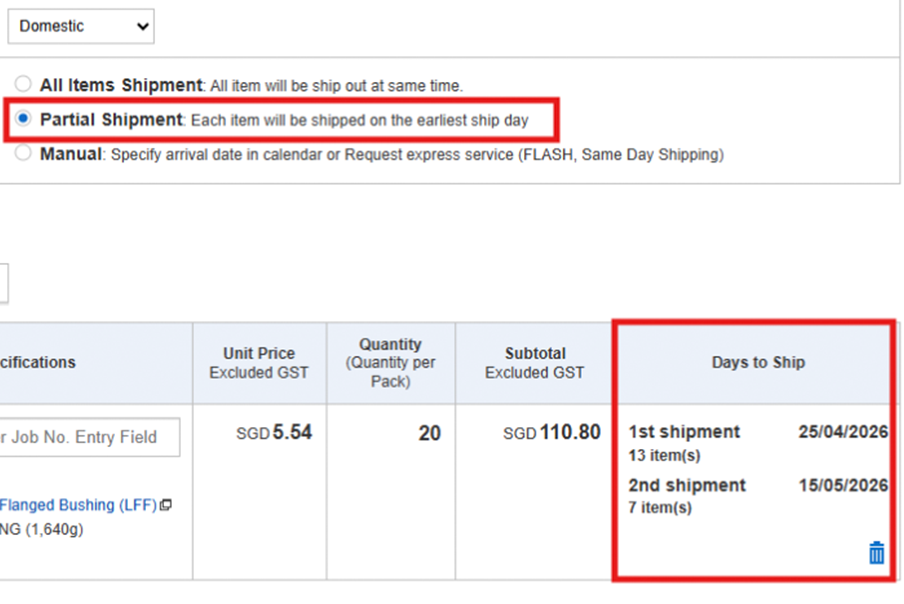 1
1If you encounter any error while placing your order, simply click the
 .
.
Our team will guide you through the process.Simplified Details ManagementEnhanced "My Page" Experience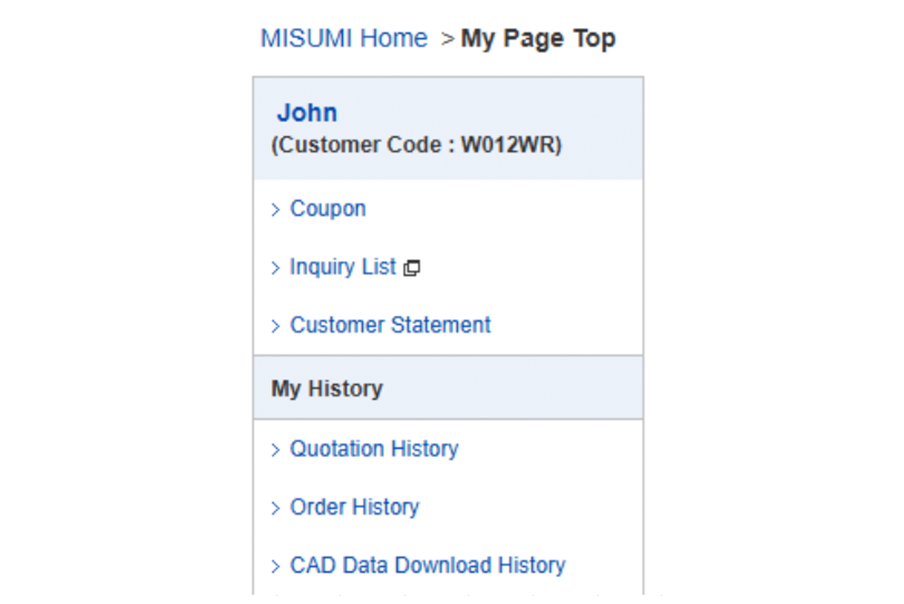
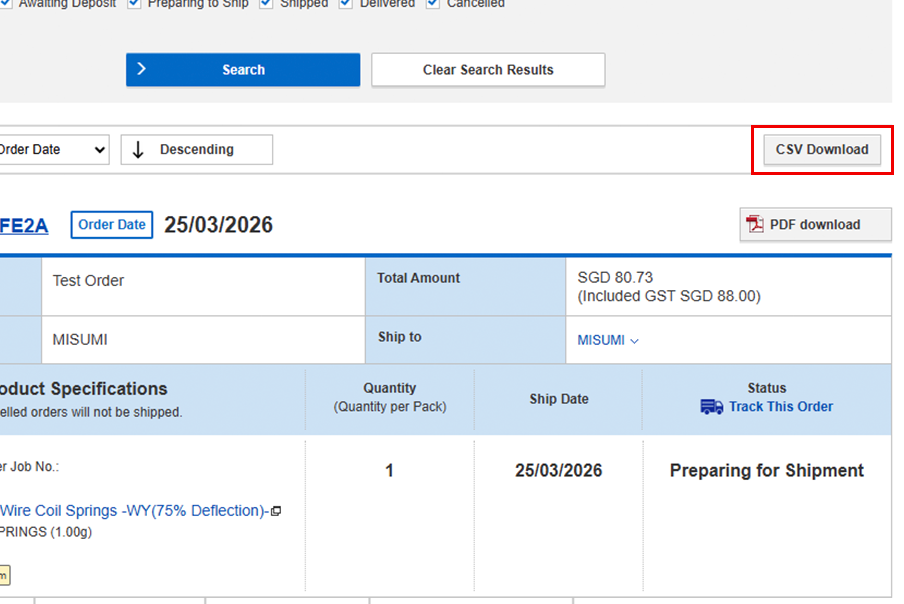
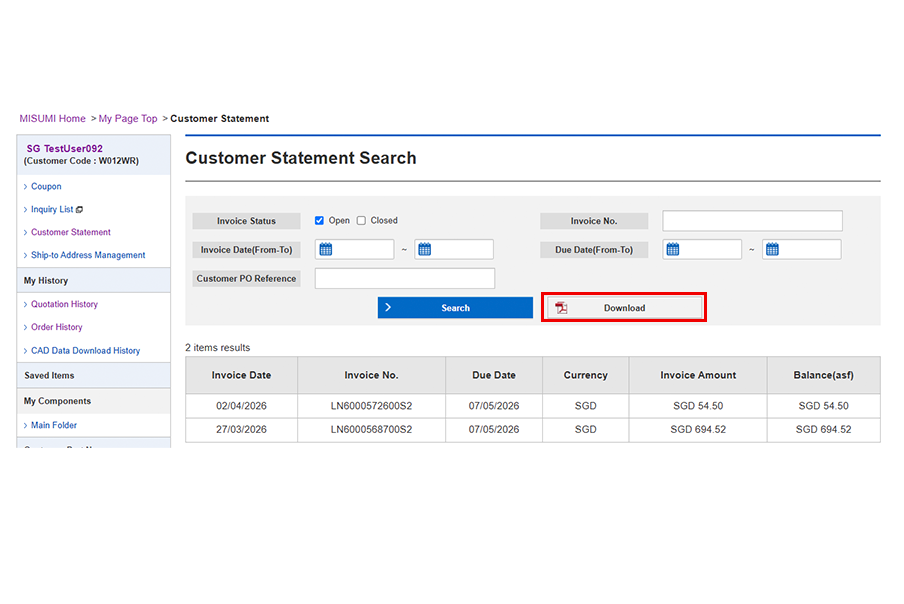 1Improved Quotation & Order History Pages
 1Self-Help Administrator Function1
 -
Frequently Asked Questions
MISUMI is upgrading its internal ordering system to provide a faster, simpler, and more flexible ordering experience. The new system improves quote creation, order processing, stock visibility, shipping options, and profile management.
Yes. Your existing login credentials, account details, and customer information will remain unchanged after the upgrade. You will simply need to sign in to your account again once the new system is live.
Because the browser cache will be cleared, please note down your login credentials before 29th June 2026. If you have forgotten your details, you can reset your login credentials directly on our website.
The upgraded system offers simplified and faster quote and order flow, helping you complete transactions with fewer pages and improved clarity.
Orders can now be confirmed anytime. 24/7, 365 days a year.No. Existing orders and quotations will not be impacted by the system upgrade.
This upgrade is part of MISUMI’s commitment to delivering a better digital experience, improving efficiency, transparency, and flexibility for our customers.
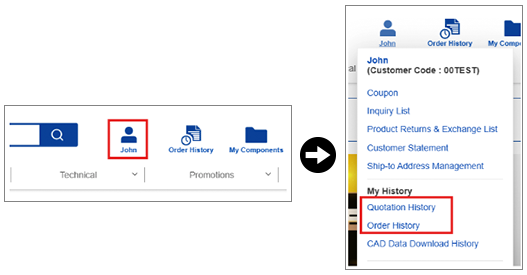
1. Log into your account.
2. Hover over the profile/name icon at the top right of the page.
3. Select "Quotation History" or "Order History" from the dropdown menu to view your records.
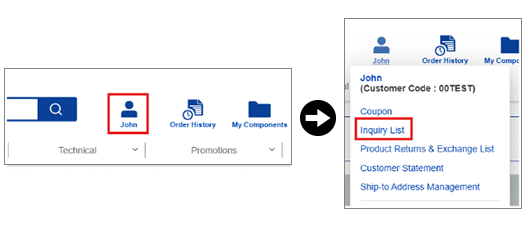
1. Log in to your account.
2. Hover over the profile/name icon at the top of the page.
3. Select "Inquiry List" from the dropdown menu to see a list of your inquiries and their current status.
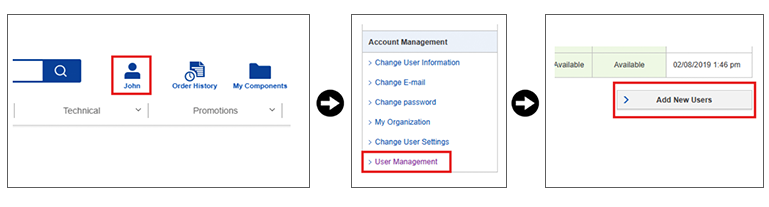
1. Log in and click on your name/profile icon at the top of the page.
2. On the left-hand navigation menu, scroll down and click "User Management".
3. Cilck the "Add New Users" button located below the main list of users.
4. Fill in the required user details, confirm the details and click on send.
Note: This feature is only available to account administrators.
-
How to Order
Why MISUMI?
Experience the MISUMI Advantage when you browse & order with us.
-
Wide Range
 7 Million Items
-
MISUMI Quality
 Affordable Options
-
Empowering Design
 Free CAD Data
-
Save Time
 Prompt Delivery
-
Always Here To Help
 Customer Support
 Automation Components
 Fasteners
 Materials
 Wiring Components
 Electrical & Controls
 Cutting Tools
 Processing Tools
 Material Handling & Storage
 Safety & General Supplies
 Lab & Clean Room Supplies
 Press Die Components
 Plastic Mold Components
 Injection Molding Components
Payment Method
- Credit Card
- PayPal
- Bank Transfer



Social Media
MISUMI Contact
Copyright © MISUMI Corporation All Rights Reserved.